Unlock iPhone Without Password: FoneTool Guide 2024

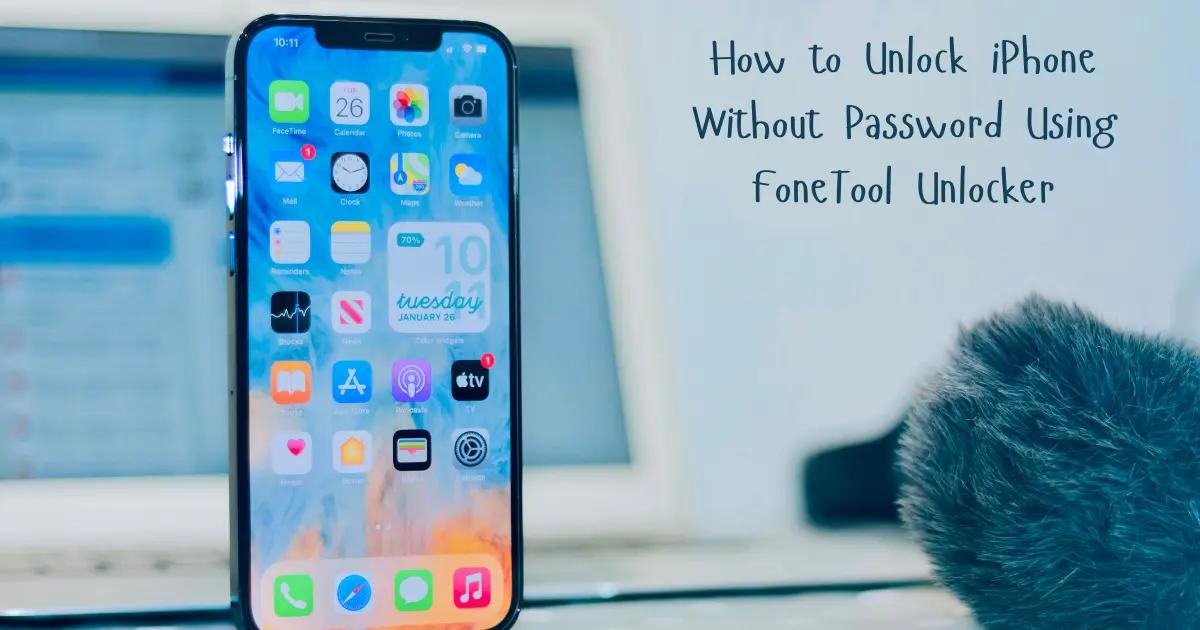
Getting locked out of your iPhone is one of the most frustrating experiences for any smartphone user. Whether you’ve forgotten your passcode after changing it, your device has been disabled due to too many incorrect attempts, or you’re dealing with a second-hand iPhone with an unknown password, the need to unlock iPhone without password becomes urgent. FoneTool Unlocker has emerged as one of the most reliable solutions for this common problem, offering a straightforward method to regain access to your device without needing advanced technical skills. This comprehensive guide will walk you through everything you need to know about using FoneTool Unlocker to bypass your iPhone lock screen, what to expect during the process, and alternative methods if you need different options.
What is FoneTool Unlocker and How Does It Work?
FoneTool Unlocker is a professional iPhone passcode removal tool designed specifically to help users regain access to locked, disabled, or password-protected iPhones. Unlike many tools that claim to unlock iPhones but deliver disappointing results, FoneTool Unlocker uses advanced algorithms to remove various types of screen locks including 4-digit passcodes, 6-digit passcodes, Touch ID, and Face ID authentication.
The software works by putting your iPhone into recovery mode or DFU (Device Firmware Update) mode, then downloading the appropriate iOS firmware package for your specific device model. Once the firmware is downloaded, FoneTool Unlocker removes the existing passcode and restores your iPhone to a usable state. The entire process is designed to be user-friendly, with a clean interface that guides you through each step without requiring technical expertise.
FoneTool Unlocker supports a wide range of iPhone models, from the iPhone 5s all the way to the latest iPhone 15 series, and is compatible with all iOS versions including the newest iOS 17. This broad compatibility makes it a versatile solution regardless of which iPhone model you own. The tool is available as an iPhone unlock software free download with trial features, though full functionality requires a license purchase.
What sets FoneTool apart from other unlocking methods is its reliability and safety. The software doesn’t use jailbreaking techniques that could potentially harm your device or void warranties. Instead, it uses official iOS restoration protocols to ensure your iPhone remains in good working condition after the unlock process. The tool also provides real-time progress updates during the unlocking process, so you always know what’s happening with your device.
Before You Start: Important Things to Know
Before you begin the process to unlock iPhone without password using FoneTool Unlocker, there are several critical factors you need to understand. First and foremost, unlocking your iPhone will erase all data on the device. This includes photos, videos, messages, contacts, apps, and all personal settings. The unlocking process essentially performs a factory reset, returning your iPhone to its original state as if it just came out of the box.
If you have an iCloud backup or iTunes backup created before you got locked out, you’ll be able to restore your data after unlocking. However, if you don’t have a recent backup, you’ll lose everything on the device. This is why it’s crucial to regularly back up your iPhone to prevent data loss in situations like this. Consider whether the data on your locked iPhone is worth trying alternative recovery methods before proceeding with FoneTool Unlocker.
Another important consideration is Find My iPhone activation. If Find My iPhone is enabled on your device and you don’t know the Apple ID and password associated with it, you’ll face Activation Lock after unlocking. This means you’ll need to enter the original Apple ID credentials to set up the iPhone after the unlock process. FoneTool Unlocker can remove the passcode, but it cannot bypass Activation Lock on devices running iOS 12 and later without the Apple ID credentials.
You’ll also need a Windows computer to run FoneTool Unlocker, as the software is currently only available for Windows operating systems (Windows 11, 10, 8.1, 8, and 7 are supported). Mac users will need to use alternative methods or access a Windows computer to use this tool. Additionally, ensure you have a stable internet connection, as the software needs to download iOS firmware files that can range from 3GB to 7GB depending on your iPhone model and iOS version.
Finally, make sure your iPhone has at least 20% battery charge before starting the process. While the unlocking procedure typically takes 10-30 minutes, you don’t want your device to power off mid-process, which could cause complications. It’s best to have your iPhone connected to a charger throughout the entire unlocking procedure for added safety.
Step-by-Step Guide: Unlock iPhone Without Password Using FoneTool
Now that you understand the prerequisites, let’s walk through the detailed process of how to unlock disabled iPhone using FoneTool Unlocker. Follow these steps carefully to ensure a successful unlock without complications.
Step 1: Download and Install FoneTool Unlocker
Visit the official FoneTool website and download the FoneTool Unlocker software to your Windows computer. The download file is approximately 2MB and installs quickly. Run the installer and follow the on-screen prompts to complete the installation. Once installed, launch FoneTool Unlocker from your desktop or start menu. The software will open to a clean, intuitive interface with several unlocking options displayed.
Step 2: Select “Unlock Screen Passcode”
On the main FoneTool Unlocker interface, you’ll see multiple unlocking features. Click on the “Unlock Screen Passcode” option, which is specifically designed for removing forgotten passcodes, Touch ID, and Face ID locks. This feature works for situations where you’ve forgotten your passcode, entered the wrong passcode too many times, or purchased a second-hand iPhone with an unknown password. Click “Start” to proceed to the next step.
Step 3: Connect Your iPhone to the Computer
Using an original or certified Lightning cable (or USB-C cable for iPhone 15 models), connect your locked iPhone to your Windows computer. FoneTool Unlocker will automatically detect your device. If your iPhone doesn’t appear in the software, try using a different USB port or cable. Sometimes, you may need to trust the computer on your iPhone, but if you can’t access your device due to the lock, the software will guide you to put your iPhone into Recovery Mode or DFU Mode manually.
Step 4: Put Your iPhone into Recovery Mode
FoneTool Unlocker will display instructions specific to your iPhone model for entering Recovery Mode. The process varies depending on your device. For iPhone 8 and later models, you’ll quickly press and release the Volume Up button, quickly press and release the Volume Down button, then press and hold the Side button until you see the Recovery Mode screen. For iPhone 7 and 7 Plus, hold the Volume Down and Sleep/Wake buttons simultaneously. For iPhone 6s and earlier, hold the Home and Sleep/Wake buttons together. Follow the on-screen instructions precisely, and the software will detect when your iPhone successfully enters Recovery Mode.
Step 5: Download the iOS Firmware Package
Once your iPhone is in Recovery Mode, FoneTool Unlocker will automatically detect your device model and current iOS version. The software will then display the appropriate firmware package you need to download. Verify that the detected information is correct, then click “Download” to begin downloading the iOS firmware. This file can be several gigabytes in size, so the download time will depend on your internet connection speed. The software shows a progress bar so you can monitor the download status. Don’t disconnect your iPhone or close the software during this process.
Step 6: Begin the Unlocking Process
After the firmware download completes, FoneTool Unlocker will verify the package to ensure it’s not corrupted. Once verification is complete, click the “Start Unlock” button. The software will display a final warning that all data on your iPhone will be erased. If you’re certain you want to proceed, click “Confirm” to begin the unlocking process. FoneTool Unlocker will now remove the passcode from your iPhone, which typically takes 5-10 minutes.
Step 7: Wait for the Process to Complete
During the unlocking process, you’ll see a progress bar showing the status. Your iPhone may restart several times during this procedure, which is completely normal. Do not disconnect your iPhone from the computer, do not close FoneTool Unlocker, and do not attempt to use your iPhone during this time. The software will display “Unlock Successfully” when the process is complete. Your iPhone will restart one final time and display the “Hello” setup screen, indicating that the passcode has been successfully removed.
Step 8: Set Up Your iPhone
Once unlocked, you can disconnect your iPhone from the computer. Your device is now in the same state as a brand-new iPhone. Follow the on-screen setup instructions to configure your language, region, Wi-Fi connection, and other settings. If you have an iCloud or iTunes backup, you can restore your data during this setup process. If Find My iPhone was enabled on your device, you’ll need to enter the original Apple ID and password to proceed with setup and bypass Activation Lock.
What Happens to Your Data When You Unlock Your iPhone?
Understanding data loss is crucial when you forgot iPhone password and need to unlock your device. When you use FoneTool Unlocker to remove your iPhone passcode, the process performs what’s essentially a factory reset. This means all data stored locally on your iPhone will be permanently erased, including photos, videos, text messages, call history, contacts, notes, calendar events, app data, and all personal settings.
However, not all data is necessarily lost forever. If you had iCloud backup enabled before getting locked out, your data is safely stored in Apple’s cloud servers. After unlocking your iPhone, you can restore from your most recent iCloud backup during the setup process. This will bring back most of your data, though you may lose anything created or modified after your last backup. iCloud backups typically occur automatically when your iPhone is connected to Wi-Fi, plugged into power, and locked, so many users have relatively recent backups without realizing it.
Similarly, if you regularly backed up your iPhone to iTunes or Finder on a computer, you can restore from that backup after unlocking. iTunes/Finder backups are often more comprehensive than iCloud backups because they can include more app data and aren’t limited by iCloud storage space. To restore from an iTunes/Finder backup, you’ll need to connect your newly unlocked iPhone to the same computer where the backup is stored and use iTunes (Windows or older macOS) or Finder (macOS Catalina and later) to restore.
Some data may still be accessible even without a backup. If you had iCloud Photos enabled, your photos and videos are stored in iCloud and will automatically sync back to your iPhone once you sign in with your Apple ID. The same applies to contacts, calendars, notes, and reminders if you had iCloud sync enabled for those categories. Third-party apps that store data in the cloud (like WhatsApp, Google Photos, Dropbox, or social media apps) will also restore your data once you reinstall the apps and sign in.
It’s important to note that some data cannot be recovered if you don’t have a backup. This includes text messages (unless you used iCloud Messages), call history, Health app data (unless specifically backed up to iCloud), and any files stored only in the Files app locally. Game progress in apps that don’t use cloud saves will also be lost. This is why creating regular backups is essential for iPhone users—you never know when you might need to restore your device.
Troubleshooting Common FoneTool Unlocker Issues
While FoneTool Unlocker is designed to work smoothly, you may occasionally encounter issues during the iPhone passcode removal process. Here are the most common problems and their solutions to help you successfully unlock iPhone without password.
iPhone Not Detected by FoneTool Unlocker
If your iPhone doesn’t appear in the software after connecting it, first try using a different USB cable. Many third-party cables are designed only for charging and don’t support data transfer. Use an original Apple Lightning cable or a certified MFi (Made for iPhone) cable. Also try connecting to a different USB port on your computer—USB 3.0 ports (usually blue) tend to work more reliably than USB 2.0 ports. If you’re using a USB hub, try connecting directly to your computer instead. Additionally, ensure iTunes is installed on your Windows computer, as FoneTool Unlocker requires iTunes drivers to communicate with iOS devices, even if you don’t use iTunes itself.
Firmware Download Fails or Gets Stuck
Firmware download issues are usually related to internet connectivity. If the download fails, stops, or gets stuck at a certain percentage, first check your internet connection stability. Try pausing and resuming the download, or restart the download completely. If you have a slow or unstable connection, consider downloading the firmware during off-peak hours when your internet is faster. Some users find success by temporarily disabling their firewall or antivirus software, as these can sometimes interfere with the download process. If the problem persists, you can manually download the iOS firmware from Apple’s servers and import it into FoneTool Unlocker using the “Select” option instead of automatic download.
iPhone Won’t Enter Recovery Mode
Getting your iPhone into Recovery Mode can be tricky, especially if you’re not familiar with the button combinations. Make sure you’re following the exact sequence for your specific iPhone model. The timing is crucial—buttons must be pressed and released quickly and in the right order. If your iPhone doesn’t enter Recovery Mode after several attempts, try putting it into DFU (Device Firmware Update) Mode instead, which is a deeper restore mode. FoneTool Unlocker provides instructions for DFU Mode as well. If your iPhone’s buttons are damaged or unresponsive, you may need to have them repaired before you can unlock the device using this method.
Unlocking Process Fails or Gets Stuck
If the unlocking process fails or freezes at a certain percentage, don’t panic. First, don’t disconnect your iPhone or close the software—wait at least 15-20 minutes as some steps can take time even if the progress bar appears stuck. If the process genuinely fails, FoneTool Unlocker will display an error message. In this case, restart both your computer and iPhone, then try the entire process again from the beginning. Make sure your iPhone has sufficient battery charge (at least 20%) and remains connected throughout the process. Some users have reported success by trying a different computer if the issue persists.
Activation Lock Appears After Unlocking
If you see the Activation Lock screen asking for an Apple ID and password after unlocking, this means Find My iPhone was enabled on the device before you unlocked it. FoneTool Unlocker can remove the passcode but cannot bypass Activation Lock on iOS 12 and later without the original Apple ID credentials. You’ll need to enter the Apple ID and password that was previously signed in on this iPhone. If you don’t know these credentials because you bought the device second-hand, you’ll need to contact the previous owner to remove the device from their Apple ID, or contact Apple Support with proof of purchase to request Activation Lock removal.
Alternative Methods to Unlock iPhone Without Password
While FoneTool Unlocker is an excellent solution, it’s not the only way to unlock disabled iPhone devices. Here are several alternative methods you can consider, each with its own advantages and limitations.
Using iTunes or Finder to Restore Your iPhone
If you have access to a computer that your iPhone has previously synced with, you can use iTunes (on Windows or older macOS) or Finder (on macOS Catalina and later) to restore your device without needing the passcode. Connect your iPhone to the trusted computer, open iTunes or Finder, and select your device. Click “Restore iPhone” to erase the device and remove the passcode. This method works well if you regularly backed up to this computer, as you can restore your data immediately after the process completes. However, if your iPhone has never synced with this computer, you’ll need to put it in Recovery Mode first, which requires using the button combinations described earlier.
Using iCloud Find My iPhone to Erase Your Device
If you have Find My iPhone enabled and remember your Apple ID and password, you can remotely erase your iPhone from any web browser. Visit icloud.com, sign in with your Apple ID, click on “Find iPhone,” select your locked device from the list, and choose “Erase iPhone.” This will remotely wipe your device and remove the passcode. After the erase completes, you can set up your iPhone as new or restore from a backup. This method is particularly useful if you don’t have access to a computer or if your iPhone is not physically with you. The limitation is that your iPhone must be connected to the internet for this method to work.
Using Recovery Mode Without Additional Software
You can put your iPhone into Recovery Mode and restore it using iTunes or Finder without third-party software. This is essentially the same process that FoneTool Unlocker automates, but done manually. Connect your iPhone to a computer, put it into Recovery Mode using the button combinations for your model, and iTunes or Finder will detect that your iPhone is in Recovery Mode and offer to restore it. Click “Restore” to download the iOS firmware and erase your device. This method is completely free but requires more technical knowledge and doesn’t offer the user-friendly interface that FoneTool Unlocker provides.
Visiting an Apple Store or Authorized Service Provider
If you’re uncomfortable using software solutions or if the methods above don’t work, you can visit an Apple Store or authorized Apple service provider. Apple technicians can help you unlock your iPhone, though they’ll still need to erase the device in the process. You’ll need to provide proof of purchase to verify that you’re the legitimate owner of the device. This method is the safest in terms of not risking any damage to your device, but it requires an appointment and may involve waiting time. Apple doesn’t charge for this service if you can prove ownership.
Using Siri to Bypass Lock Screen (Older iOS Versions Only)
On some older iOS versions (primarily iOS 8 through iOS 10.1), there were Siri exploits that allowed users to bypass the lock screen and access certain features. However, Apple has patched these vulnerabilities in all current iOS versions, so this method no longer works on iOS 10.2 and later. If you’re running an extremely old iOS version, you might find tutorials online for these exploits, but they only provide limited access to your device and don’t truly unlock it. For modern iPhones, this method is not viable.
For those specifically searching for how to unlock iPhone without passcode or Face ID, these alternative methods provide various approaches depending on your specific situation, available resources, and technical comfort level.
FoneTool Unlocker vs Other iPhone Unlocking Tools
The market for iPhone unlocking software is crowded, with numerous tools claiming to bypass iPhone lock screen effectively. Understanding how FoneTool Unlocker compares to its competitors can help you make an informed decision about which tool to use.
FoneTool Unlocker vs Tenorshare 4uKey
Tenorshare 4uKey is one of the most popular iPhone unlocking tools and a direct competitor to FoneTool Unlocker. Both tools offer similar core functionality—removing screen passcodes, Touch ID, and Face ID locks. However, FoneTool Unlocker typically offers more competitive pricing with frequent discounts and a more generous trial version that lets you test the software before purchasing. 4uKey has a slight edge in terms of brand recognition and customer support availability, with 24/7 support in multiple languages. Both tools have similar success rates and support the same range of iPhone models and iOS versions. The choice between them often comes down to pricing and personal preference regarding the user interface.
FoneTool Unlocker vs Dr.Fone – Screen Unlock
Dr.Fone by Wondershare is a comprehensive iOS toolkit that includes a screen unlock feature among many other tools. While Dr.Fone offers more overall functionality (data recovery, system repair, data transfer, etc.), its screen unlock feature performs similarly to FoneTool Unlocker’s dedicated unlocking tool. The main difference is that Dr.Fone is more expensive because you’re paying for the entire toolkit, even if you only need the unlock feature. FoneTool Unlocker is more cost-effective if you specifically need to unlock your iPhone and don’t require the additional features. However, if you anticipate needing multiple iOS management tools, Dr.Fone’s comprehensive package might offer better value.
FoneTool Unlocker vs iMyFone LockWiper
iMyFone LockWiper is another popular unlocking tool that directly competes with FoneTool Unlocker. LockWiper offers a few additional features, such as the ability to bypass MDM (Mobile Device Management) locks and remove Apple ID from devices in certain scenarios. FoneTool Unlocker focuses primarily on passcode removal and does it very well, with a cleaner, more intuitive interface. LockWiper tends to be slightly more expensive but offers those extra features that might be valuable for specific use cases. For straightforward passcode removal, both tools are equally effective, so the decision comes down to whether you need the additional MDM and Apple ID removal features.
FoneTool Unlocker vs Free Methods (iTunes/Finder)
The most significant comparison is between paid tools like FoneTool Unlocker and free methods using iTunes or Finder. The free methods work and are completely legitimate, but they require more technical knowledge and don’t offer the same user-friendly experience. FoneTool Unlocker automates the entire process, provides clear instructions for each step, and offers customer support if you encounter issues. The free methods require you to manually enter Recovery Mode, navigate iTunes or Finder, and troubleshoot any problems on your own. For tech-savvy users comfortable with these processes, the free methods are perfectly adequate. For users who want a guided, simplified experience with support available, FoneTool Unlocker’s price is justified.
Safety and Reliability Comparison
All reputable iPhone unlocking tools, including FoneTool Unlocker, use the same underlying process—putting the device into Recovery or DFU Mode and restoring it with fresh iOS firmware. This means the safety and reliability are similar across different tools. The main differences lie in user interface design, customer support quality, pricing, and additional features. FoneTool Unlocker has built a strong reputation for reliability, with a high success rate and positive user reviews. It doesn’t use any jailbreaking or unauthorized methods that could harm your device or violate Apple’s terms of service.
Preventing Future iPhone Lockouts
After successfully unlocking your iPhone, you’ll want to avoid finding yourself in the same situation again. Here are essential strategies to prevent future lockouts and ensure you always have access to your device.
Use a Memorable but Secure Passcode
Choose a passcode that balances security with memorability. While “123456” or “000000” are easy to remember, they’re also the first codes thieves will try. Instead, use a meaningful number that only you would know—perhaps a combination of significant dates, addresses, or numbers that have personal meaning. Consider using a 6-digit passcode instead of 4-digit for better security while still being manageable to remember. Avoid using your birthday or other easily guessable information that someone could find on your social media profiles.
Enable Face ID or Touch ID
Biometric authentication methods like Face ID (iPhone X and later) or Touch ID (iPhone models with Home buttons) allow you to unlock your iPhone without entering your passcode most of the time. You’ll still need to set a passcode as a backup, but you’ll use it much less frequently, reducing the chances of forgetting it. Face ID and Touch ID are also more secure than simple passcodes and faster to use. Just remember that you’ll still need your passcode after restarting your iPhone or if biometric authentication fails multiple times.
Write Down Your Passcode Securely
While it might seem counterintuitive to security advice, writing down your passcode and storing it in a secure location can prevent lockouts. Keep it in a locked drawer, safe, or password manager—somewhere secure but accessible to you if you forget. Don’t store it in your wallet or anywhere that could be stolen along with your iPhone. A password manager app on another device is an excellent option, as it keeps your passcode encrypted and accessible from multiple devices.
Set Up Regular iCloud Backups
Even if you do get locked out and need to erase your iPhone, regular backups ensure you won’t lose your data. Enable iCloud Backup by going to Settings > [Your Name] > iCloud > iCloud Backup, and turn on “iCloud Backup.” Your iPhone will automatically back up daily when connected to Wi-Fi, plugged into power, and locked. This way, if you ever need to restore your device, you’ll have a recent backup to restore from. Consider also making periodic iTunes or Finder backups to your computer for additional security.
Use the “Erase Data” Feature Carefully
iPhones have a security feature that erases all data after 10 failed passcode attempts. While this protects your data if your iPhone is stolen, it can be problematic if you have children or others who might accidentally trigger it. You can disable this feature in Settings > Face ID & Passcode (or Touch ID & Passcode) by turning off “Erase Data.” However, keep in mind that disabling this feature reduces your iPhone’s security if it’s lost or stolen.
Keep Your Apple ID Credentials Accessible
Even if you unlock your iPhone, you’ll need your Apple ID and password to set it up again if Find My iPhone was enabled. Make sure you know your Apple ID credentials and store them securely. If you tend to forget passwords, use Apple’s account recovery options to set up trusted phone numbers and devices. You can also use a password manager to store your Apple ID credentials securely.
Understanding iPhone Security Features and Lockout Scenarios
To better understand why you need tools like FoneTool Unlocker, it’s helpful to know how iPhone security features work and the various lockout scenarios you might encounter.
How iPhone Passcode Security Works
When you set a passcode on your iPhone, it encrypts all data on the device using that passcode as part of the encryption key. This means your data is scrambled and unreadable without the correct passcode. Apple designed this system so that even they cannot access your data without your passcode—it’s not stored on Apple’s servers or anywhere else. This strong security is excellent for protecting your privacy but means there’s no “master key” or backdoor to unlock your iPhone if you forget your passcode.
Progressive Lockout Delays
When you enter an incorrect passcode, iPhone implements progressive delays to prevent brute-force attacks. After five wrong attempts, you’ll see “iPhone is disabled, try again in 1 minute.” After six wrong attempts, it’s 5 minutes. Seven wrong attempts result in a 15-minute delay, and eight wrong attempts trigger a 60-minute delay. If you have the “Erase Data” feature enabled, the tenth wrong attempt will permanently erase all data on your iPhone. These delays make it virtually impossible for someone to guess your passcode through trial and error.
Different Types of iPhone Locks
There are several types of locks you might encounter on an iPhone. The screen lock (passcode, Touch ID, or Face ID) is the most common and what FoneTool Unlocker addresses. Activation Lock is tied to your Apple ID and prevents anyone from setting up your iPhone without your Apple ID credentials—this persists even after erasing the device. MDM (Mobile Device Management) locks are used by organizations to manage company-owned devices. SIM locks restrict your iPhone to a specific carrier. Each type of lock serves a different security purpose and requires different methods to remove.
Common Lockout Scenarios
People get locked out of their iPhones for various reasons. The most common is simply forgetting the passcode after changing it or not using the device for a while. Children or others entering wrong passcodes repeatedly can trigger the disabled state. Buying a second-hand iPhone that still has the previous owner’s passcode is another common scenario. Some users inherit devices from family members who have passed away and don’t know the passcode. In rare cases, software glitches can cause Face ID or Touch ID to stop working, forcing you to use the passcode you may have forgotten.
Why Factory Reset is Necessary
Many people wonder why unlocking an iPhone requires erasing all data. The reason is Apple’s security architecture. Because the passcode is integral to the encryption key protecting your data, there’s no way to remove the passcode without also removing access to the encrypted data. This is a feature, not a bug—it ensures that if someone steals your iPhone, they can’t simply remove your passcode and access your personal information. The only way to make the device usable again is to erase it completely and install fresh iOS software, which is what tools like FoneTool Unlocker do.
Legal and Ethical Considerations
When using tools to unlock iPhone without password, it’s important to understand the legal and ethical implications to ensure you’re using these tools appropriately and legally.
Unlocking Your Own Device
Using FoneTool Unlocker or similar tools to unlock your own iPhone is completely legal. You own the device, and you have every right to regain access to it if you’ve forgotten your passcode. This is no different from calling a locksmith to open your own locked door. Apple doesn’t prohibit users from restoring their devices, and the process FoneTool Unlocker uses is based on official Apple restoration protocols.
Unlocking Someone Else’s Device
The legal situation becomes more complex when unlocking a device that belongs to someone else. If you’re helping a family member or friend unlock their device with their permission and knowledge, this is generally acceptable. However, unlocking someone else’s iPhone without their permission could potentially violate privacy laws and computer fraud statutes, depending on your jurisdiction. Always ensure you have explicit permission from the device owner before unlocking their iPhone.
Second-Hand and Inherited Devices
If you’ve purchased a second-hand iPhone or inherited one from a family member, you have the right to unlock it to make it usable. However, if Activation Lock is enabled, you’ll need the previous owner to remove the device from their Apple ID, or you’ll need proof of purchase to request Apple’s assistance. Simply unlocking the passcode on a device with Activation Lock enabled won’t make it fully usable, as you’ll still face the Activation Lock screen during setup.
Stolen Devices
Using unlocking tools on stolen devices is illegal and unethical. If you find an iPhone, the right course of action is to turn it in to local authorities or an Apple Store, where they can attempt to contact the owner. Modern iPhones with Activation Lock are essentially useless to thieves even if they manage to remove the passcode, as they can’t bypass Activation Lock without the original owner’s Apple ID credentials. This makes stealing iPhones much less attractive to criminals.
Warranty and Support Implications
Using FoneTool Unlocker to unlock your iPhone doesn’t void your warranty because it uses official restoration methods that Apple themselves would use. However, if you damage your device while attempting to unlock it (for example, by using incorrect button combinations forcefully), any resulting damage wouldn’t be covered under warranty. As long as you follow the software’s instructions carefully, there’s no risk to your warranty status.
Data Privacy Considerations
When you unlock your iPhone using FoneTool Unlocker, all data is erased from the device, which actually protects your privacy. The software doesn’t access, copy, or transmit any of your personal data during the unlocking process. However, be aware that if you’re unlocking a device to give or sell to someone else, erasing it is essential to protect your privacy. Simply removing the passcode without erasing data (which isn’t possible with current iOS versions anyway) would leave your personal information accessible to the new owner.
Cost Analysis: Is FoneTool Unlocker Worth the Investment?
When deciding whether to purchase FoneTool Unlocker or use free alternatives, it’s helpful to consider the cost-benefit analysis and what you’re actually paying for.
FoneTool Unlocker Pricing Structure
FoneTool Unlocker typically offers several pricing tiers. A one-month license usually costs around $39.95, a one-year license around $49.95, and a lifetime license around $69.95 (prices may vary based on promotions). These licenses allow you to unlock multiple devices during the license period, which is valuable if you manage multiple iPhones or help family members. The software also frequently offers discounts, especially during holiday seasons, which can reduce the cost by 20-40%.
Comparing to Free Methods
The free methods (using iTunes, Finder, or iCloud) cost nothing but require more technical knowledge and time. If you’re comfortable with technology and can follow online tutorials, the free methods work just as well for unlocking. However, if you value your time and want a streamlined, guided process with support available if something goes wrong, FoneTool Unlocker’s cost is reasonable. Consider that taking your iPhone to a repair shop for unlocking could cost $50-100, making FoneTool Unlocker’s pricing competitive even compared to professional services.
Value of Customer Support
Part of what you’re paying for with FoneTool Unlocker is access to customer support. If you encounter issues during the unlocking process, you can contact their support team for assistance. This can be invaluable if you’re not technically inclined or if you run into unusual problems. Free methods don’t come with any support—you’re on your own to troubleshoot issues using online forums and tutorials.
Time Savings
FoneTool Unlocker’s streamlined interface and automated process can save significant time compared to manual methods. While the actual unlocking process takes the same amount of time regardless of method (it’s limited by firmware download and installation speeds), FoneTool Unlocker eliminates the time spent researching how to do it manually, troubleshooting issues, and potentially making mistakes that require starting over. For many users, this time savings alone justifies the cost.
Success Rate and Reliability
Professional tools like FoneTool Unlocker typically have higher success rates than attempting manual methods, especially for users without technical experience. The software is designed to handle various scenarios and device models, with built-in error handling and recovery options. If a manual attempt fails, you might end up purchasing software anyway, so starting with a reliable tool can actually save money in the long run.
Ultimately, whether FoneTool Unlocker is worth the investment depends on your technical comfort level, how urgently you need to unlock your iPhone, and how much you value convenience and support. For most users who need to unlock their iPhone quickly and reliably without technical hassle, the cost is reasonable and worthwhile.
Frequently Asked Questions
Can you unlock a locked iPhone without a password?
Yes, you can unlock iPhone without password using specialized software like FoneTool Unlocker. These tools bypass the lock screen by removing the passcode entirely, though this process will erase all data on the device. It’s important to note that you’ll need access to a computer and a USB cable to complete the unlocking process.
How to unlock an iPhone if you have forgotten the password?
If you’ve forgotten your iPhone password, you have several options: use FoneTool Unlocker for a quick solution, restore through iTunes/Finder, or use iCloud’s Find My iPhone feature to erase the device remotely. FoneTool Unlocker is often the fastest method, typically completing the unlock process in 10-15 minutes. All methods will erase your data, so having a recent backup is crucial for data recovery.
Is it possible to unlock a disabled iPhone?
Yes, a disabled iPhone can be unlocked using tools like FoneTool Unlocker, even if it shows messages like “iPhone is disabled, connect to iTunes.” When an iPhone becomes disabled after multiple failed passcode attempts, unlocking software can remove the restriction and passcode simultaneously. This works for all disability states, including the permanent “iPhone is disabled” message.
How to unlock iPhone without passcode without resetting?
Unfortunately, it’s not possible to unlock iPhone without password while preserving your data if you don’t have the passcode. All legitimate unlocking methods—including FoneTool Unlocker, iTunes, and iCloud—require erasing the device as a security measure. The only way to avoid data loss is to restore from a previous iCloud or iTunes backup after unlocking.
How much does it cost to unlock a disabled iPhone?
The cost to unlock a disabled iPhone varies by method: FoneTool Unlocker typically costs between $29.95-$69.95 depending on the license type, while Apple Store services may charge $50-$150 for assistance. Using free methods like iTunes or iCloud costs nothing but requires you to remember your Apple ID credentials. Third-party software like FoneTool often provides the best balance of affordability and ease of use.
Can you unlock an iPhone Lock Screen without a computer?
Limited options exist to unlock iPhone without password and without a computer. You can use iCloud’s Find My iPhone feature from another device’s web browser to remotely erase your iPhone, which removes the passcode. However, most reliable unlocking methods, including FoneTool Unlocker, require a computer connection for the unlock process to work properly.
How do you hard reset an iPhone when it is disabled?
To hard reset a disabled iPhone, you’ll need to put it into Recovery Mode first: for iPhone 8 and later, quickly press Volume Up, then Volume Down, then hold the Side button until the recovery screen appears. Once in Recovery Mode, connect to a computer with iTunes/Finder or use FoneTool Unlocker to complete the reset. This process will erase all data and remove the passcode.
Is Face ID secure enough, or can it be fooled by a photo?
Face ID cannot be fooled by a photo because it uses advanced 3D depth mapping and infrared technology to create a detailed facial map. While Face ID is highly secure, if it fails or your iPhone is disabled, you’ll still need the passcode or a tool like FoneTool Unlocker to regain access. Face ID is designed to work only with your actual face, not photographs, masks, or videos.
What happens to my data when I unlock iPhone without password?
When you unlock iPhone without password using any method, all data on the device will be erased as a security measure. This includes photos, messages, apps, and settings—everything returns to factory default. After unlocking with FoneTool Unlocker or similar tools, you can restore your data from an iCloud or iTunes backup if you created one before getting locked out.
Do I need my Apple ID to unlock a disabled iPhone?
While FoneTool Unlocker can remove the lock screen passcode without requiring your Apple ID during the unlock process, you’ll need your Apple ID and password afterward to set up the device if Find My iPhone was enabled. This is due to Apple’s Activation Lock security feature. If you don’t know the Apple ID associated with the device, you may face additional challenges even after removing the passcode.
You May Also Like

7 Reasons Why WPS Desktop Is a Must-Have Tool in 2026

Reducing Cyber Risk: Practical Guide for UK Businesses 2024

Biogas Odour Control: Carbon Filtration Systems Guide